Export & Share (PDF)
Everything you mark and write in BibleMarker stays safely in the app — but it doesn’t have to stay there. Think of this as the copy machine: you can make a copy of your marked-up chapter or your study notes and take it anywhere. Print it out, email it to a friend, or bring it to your study group. Making a copy never changes the original — your work in the app stays exactly as it is.
There are three ways to do it, and this guide walks through each one.
Save a chapter as PDF
This makes a PDF of the chapter you’re reading — with all your colored marks, your headings, and your notes right on the page, just the way it looks on screen.
- Open the chapter you want to save.
- Tap the ⋯ button at the top right of the screen.
- Tap Export page…. A small window opens — for John 1, it’s titled “Export John 1.”
- You’ll see two checkboxes: This chapter (John 1) and Whole chapter. Leave them as they are, or adjust to taste.
- Tap Save as PDF.
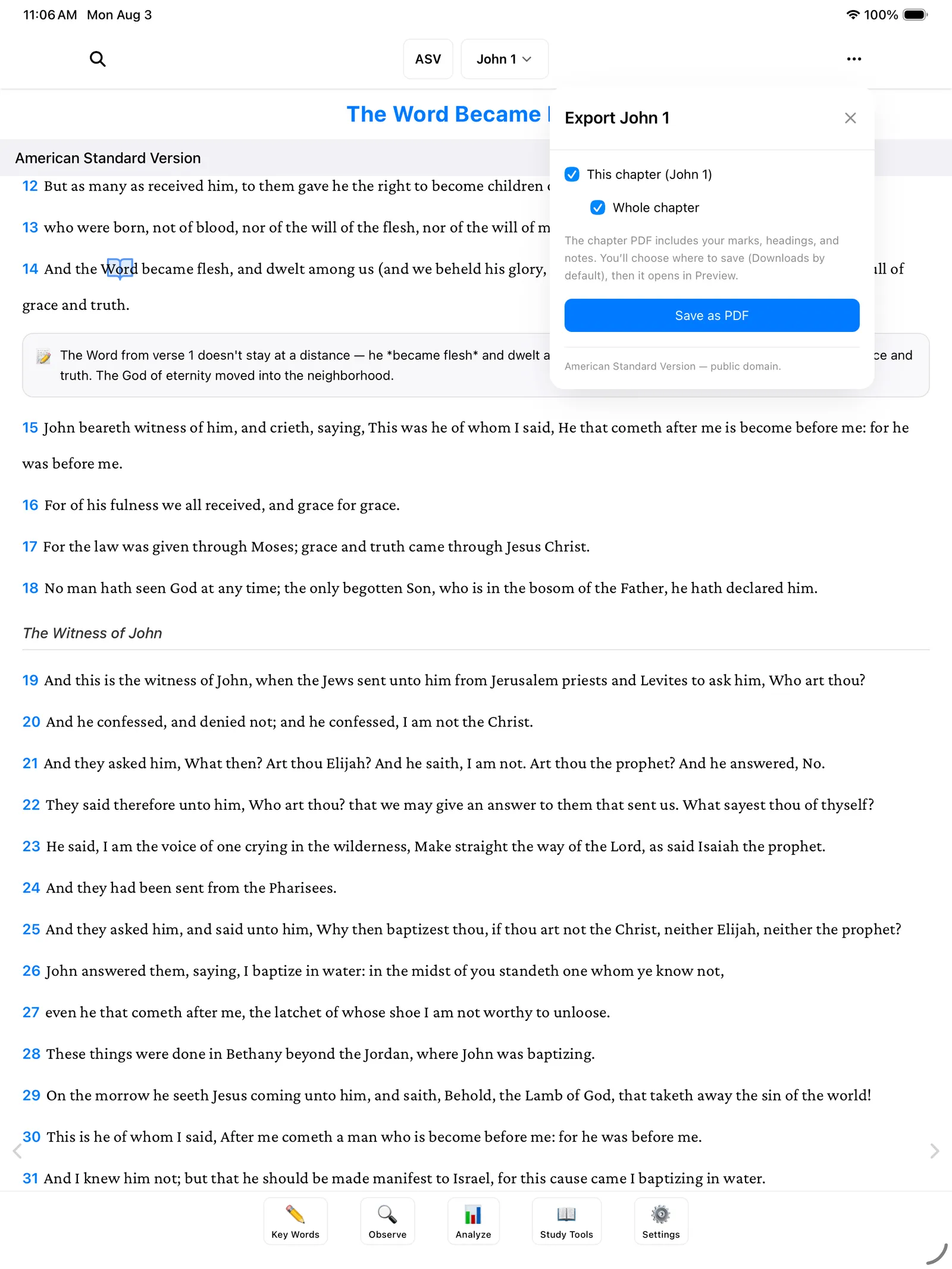
As the window explains: the chapter PDF includes your marks, headings, and notes. You’ll choose where to save it — your Downloads folder is suggested — and then it opens so you can see it right away.
At the bottom of the window you’ll also see a small note crediting the translation, such as “American Standard Version — public domain.” That stays on the PDF, so anyone you share it with knows which Bible they’re reading.
Tip: Once you have the PDF, printing it works like printing anything else on your device. A printed, marked-up chapter is lovely to bring to a group study — or to hand to a friend who still prefers paper.
Save a study as PDF
If you want a copy of a whole study — all the observations you’ve gathered, not just one chapter — you can export the study itself:
- Tap Settings (⚙️), the last of the five buttons along the bottom of the screen.
- Tap the Studies tab.
- Tap the study you want.
- Tap Export PDF.
That saves a PDF of that study’s observations. (If you haven’t set up a study yet, the Create a Study guide shows you how.)
Save everything as a text document
There’s one more option, and it’s a good one for peace of mind: saving all your study notes — your observations, interpretations, and applications — as one readable document, organized by book and chapter.
- Tap Settings (⚙️), then the Studies tab.
- Scroll to the section called Export study notes.
- Tap Export Study Notes (Markdown).
“Markdown” is just the name of the format — in plain terms, it’s a simple text document that any computer can open, now or decades from now. No special app required. If you like keeping a paper trail (or a digital one), this is the closest thing to photocopying your whole study notebook.
Don’t worry: Exporting makes copies — it never moves or removes anything. Your marks and notes stay right in the app, untouched.
Where to go next
- Settings & Backups — keep your work safe with automatic backups.
- Accounts & Sync — see your same study on all your devices.