Lists & Flow
If you’ve ever studied with a notebook open beside your Bible, you know the habit: as you read, you keep a running list in the margin — every name Jesus is called, everything a passage says about love. BibleMarker’s Lists tab is that margin, and it never runs out of room. And when the text draws a conclusion — a “therefore,” a “so that” — the Flow tab gives you a place to write down where the argument is going.
Both live in the Observe panel: tap Observe (🔍), the second of the five buttons along the bottom of the screen. Lists is the first tab in the row across the top; Flow is the last.
Don’t worry: Lists are just collections of notes. You can rename them, add to them, or remove entries any time — nothing is set in stone.
What a list is
A list is a simple question you keep asking as you read. Take John chapter 1 and ask: what is Jesus called here? The Word. The Lamb of God. Rabbi. The Son of God. The King of Israel. Each answer becomes an entry in a list called “Names of Jesus in John 1.”
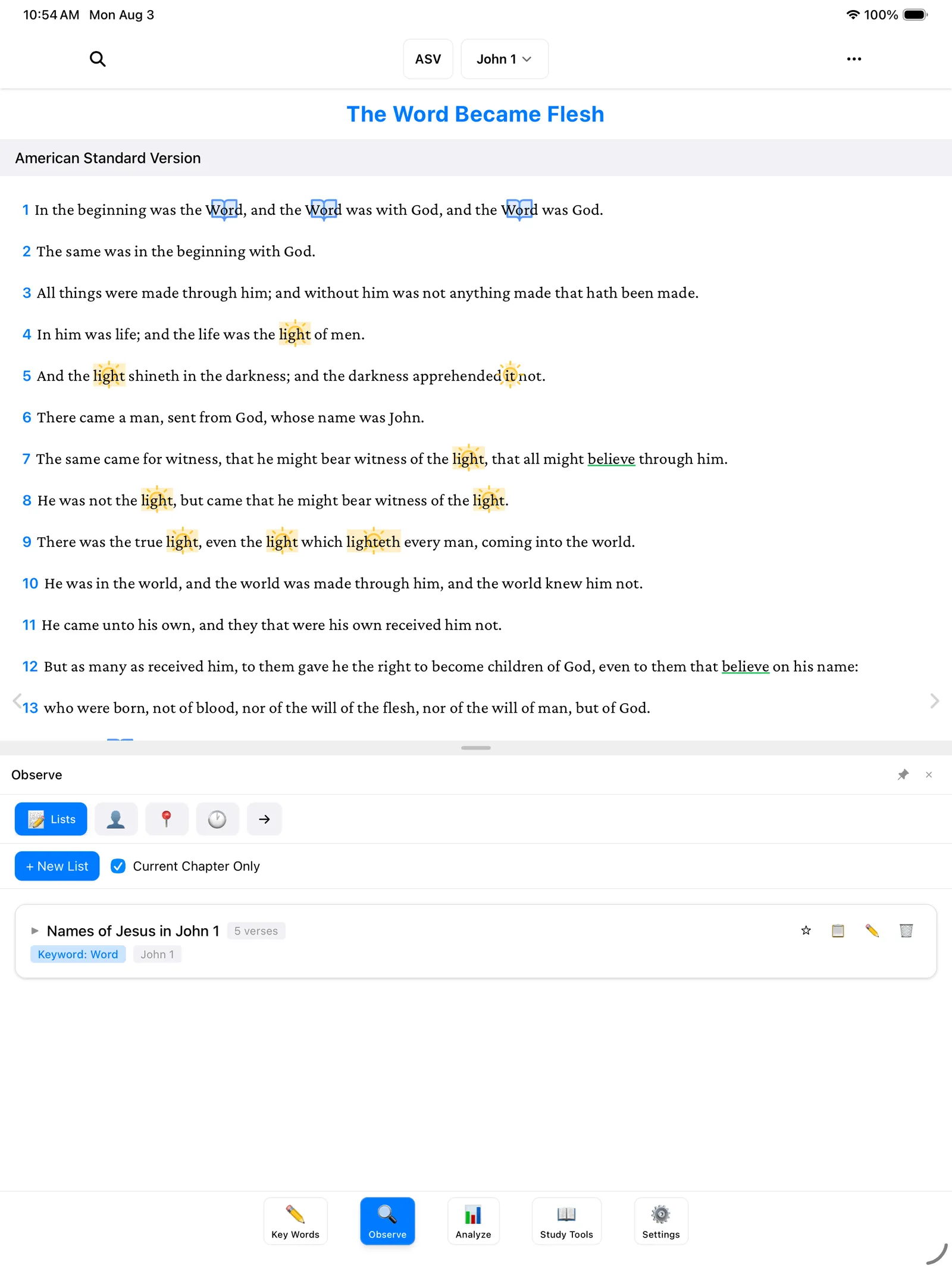
Tap a list to open it, and you’ll see every entry with its verse — the noted phrase highlighted right in the verse text, so each one stays in context.
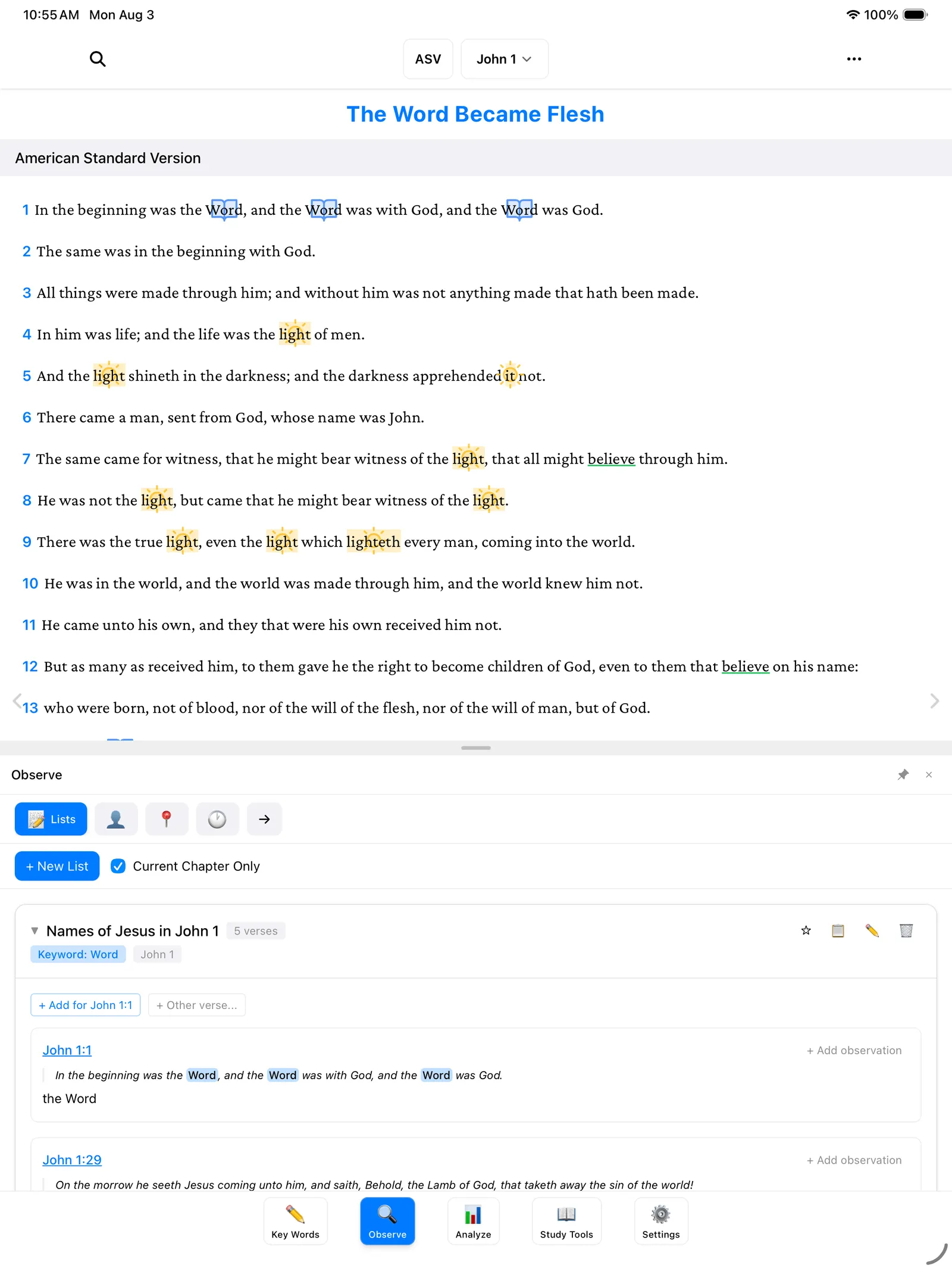
Make a list and add to it
The natural way to build a list is straight from the text, as you read:
- In the reading view, drag your finger across the phrase you want to keep — “the Lamb of God,” for example.
- A little menu appears. Tap Observe.
- Choose the list it belongs to — or create a new one right there, with a name like “Names of Jesus in John 1.”
- The phrase and its verse are added to the list. Keep reading; when you spot the next one, do it again.
You can also tap the verse number at the start of a verse and choose Add Observation — handy when the whole verse belongs on the list. And from the Lists tab itself, the + New List button starts an empty list you can fill as you go.
Tip: The Current Chapter Only checkbox near the top shows just the entries from the chapter you’re reading — useful once your lists start to grow.
There’s no limit and no wrong topic. “Everything light does.” “Commands in this chapter.” “Promises to believers.” If you’d write it in a margin, it belongs in a list.
The Flow tab
Now for the last tab in the row: Flow. This one is about the logic of a passage — the moments where the writer stops describing and starts concluding. Watch for little words like therefore, so that, for this reason. Whenever you see one, it’s worth pausing to ask: what came before, and what follows from it?
The first time you open Flow, it will be empty, with a friendly nudge: “No conclusions recorded yet. Record conclusion terms and logical flow you observe in the text. Use the → symbol to mark conclusion terms, then add details here.”
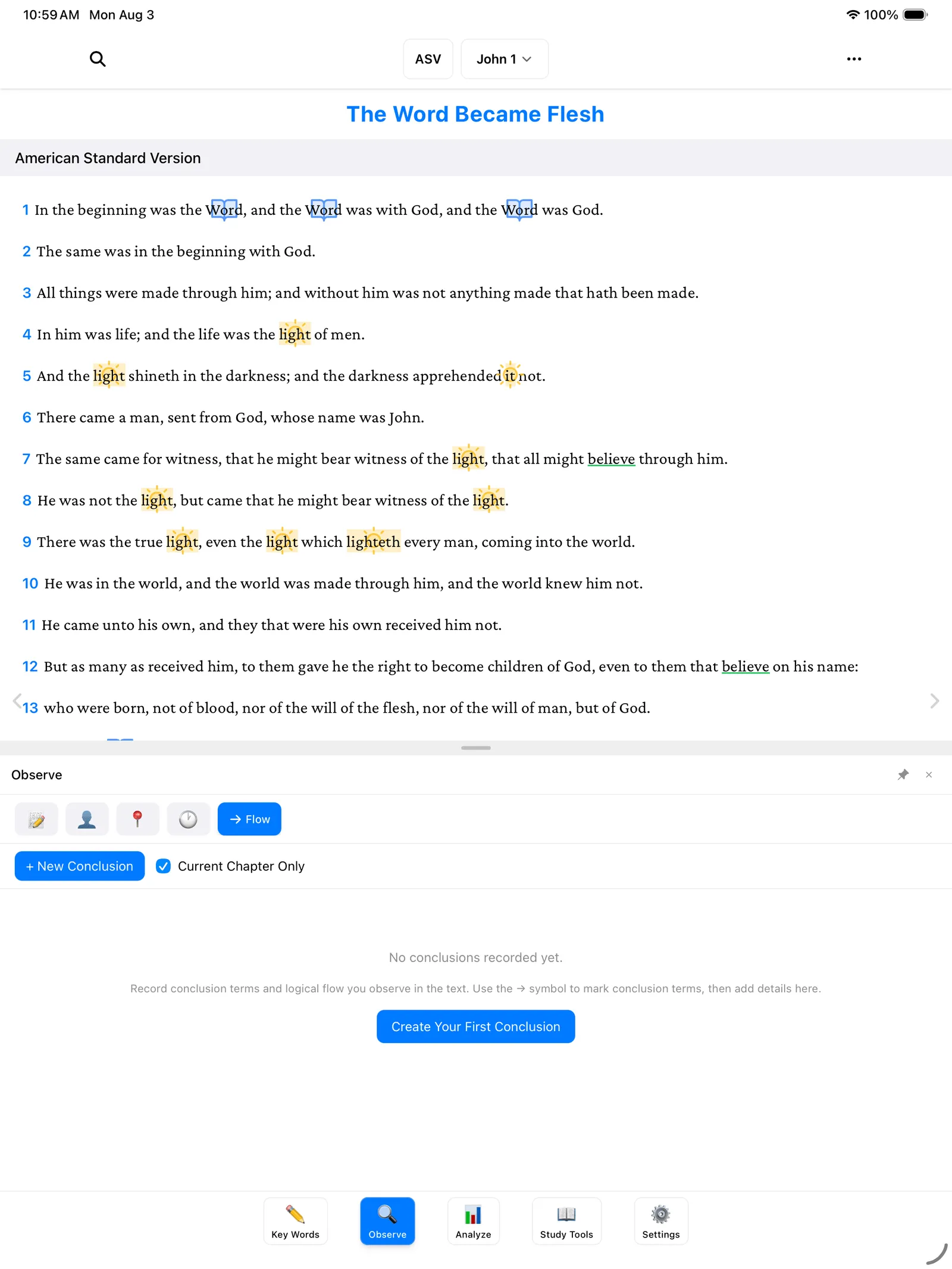
Here’s the idea:
- As you read, when you hit a conclusion word like “therefore,” mark it in the text with the → symbol — a little arrow that says this points somewhere. (Symbols are part of marking key words; see Marking Key Words if you haven’t done that yet.)
- Then open the Flow tab and tap Create Your First Conclusion (or + New Conclusion, once you have a few).
- Write out the conclusion in your own words — what the “therefore” is there for.
Think of it as the arrows you’d draw in a paper Bible’s margin, connecting a truth to what it leads to — except here, your notes about each arrow are kept together in one place.
Where to go next
- People, Places & Time — the other three tabs in the Observe panel.
- The Analyze Tab — where your lists and observations come together into the big picture.